Lilu
Base patching framework used by several other Hackintosh extensions.
OpenCore EFI · macOS Sequoia
An OpenCore EFI configuration for running macOS Sequoia on a compatible Dell OptiPlex 3050. This page explains what the repository contains, how it works, and how to use it.
Overview
The repository contains the EFI boot environment used by OpenCore. It does not contain macOS and it is not a macOS installer.
OpenCore starts before macOS. It provides the ACPI patches, UEFI drivers, kernel extensions and device properties needed for macOS to recognize the OptiPlex hardware correctly.
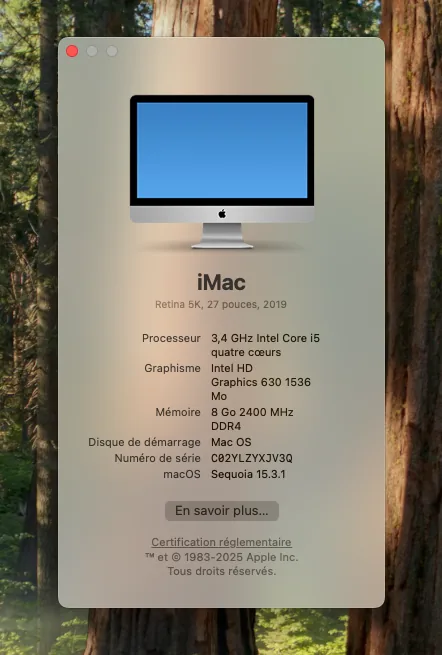
The current configuration uses an iMac19,1 SMBIOS and is set up around Intel HD Graphics 630, onboard audio, Realtek Ethernet, USB and Dell hardware sensors.
Compatibility
OptiPlex 3050 machines can have different hardware. The table below describes the configuration represented by this repository.
iMac19,1Replace identifiersInstallation
The EFI is intended as a starting point for a compatible OptiPlex 3050. Keep a backup of a known-working EFI before changing your installation.
Obtain macOS from Apple and create your installer or recovery media separately.
Mount the EFI partition of the installer USB or the target disk before copying the OpenCore files.
Place the EFI folder from this repository at the root of the EFI partition. The final path must contain EFI/BOOT and EFI/OC.
Keep the iMac19,1 model, but generate unique SystemSerialNumber, MLB, SystemUUID and ROM values before using Apple services.
Use settings appropriate for OpenCore/macOS, including UEFI boot and AHCI for SATA. Some options may not exist in the Dell BIOS.
Select the OpenCore UEFI entry from the Dell boot menu, then choose the macOS installer and follow the installation process.
Once macOS boots correctly from USB, copy the working EFI to the EFI partition of the internal macOS drive so the machine can boot without the installer USB.
git clone https://github.com/Epikaigle/Dell-OptiPlex-3050-Hackintosh.git
EFI contents
EFI/
├── BOOT/
│   └── BOOTx64.efi
└── OC/
    ├── ACPI/
    │   ├── SSDT-EC.aml
    │   ├── SSDT-HPET.aml
    │   └── SSDT-PLUG.aml
    ├── Drivers/
    ├── Kexts/
    ├── Tools/
    ├── OpenCore.efi
└── config.plistBase patching framework used by several other Hackintosh extensions.
Intel graphics initialization and framebuffer/display patching.
Audio support through Apple's native audio framework.
Provides the System Management Controller layer expected by macOS.
Support for the onboard Realtek Ethernet controller.
CPU, Super I/O and Dell-specific hardware monitoring.
Important
The public config.plist contains PlatformInfo values. Do not use public identifiers as permanent identifiers for your own machine. Generate unique values before signing in to iCloud, iMessage, FaceTime or other Apple services.
The GitHub repository contains the EFI itself, while the README provides the main technical information directly on GitHub.
Open GitHub repository ↗ Read the README ↗ OpenCore Install Guide ↗